Workflows
Track work and personal accounts together
Plenty of developers have two accounts for the same coding agent for ordinary reasons: a seat their employer pays for and a personal plan for their own projects. This guide shows how to watch both in one place with Agent Tank, so you can see which account’s limits you are using. It starts with what each vendor’s terms say about accounts.
Plans and limits change often. Numbers here were checked on the dates listed under Sources; always confirm on the provider’s own pages.
When you have more than one account
The common case is a work seat and a personal plan. Claude Code on a Claude Team seat is Included2, and Each member’s Claude Code usage draws from a per-seat allowance that resets on a rolling five-hour window and a weekly window; its size depends on the seat tier (Standard or Premium)3. OpenAI describes ChatGPT Business as a way to Bring Codex into your startup or growing business4. For Antigravity, Google’s terms also cover access through an employer’s Gemini Enterprise or Google Workspace subscription (quoted below). Next to that seat, you may pay for your own plan for side projects.
Each of those accounts has its own limits, its own reset times and, often, its own owner: your employer manages the seat, you manage the plan. When both live in the same CLI on the same laptop, it is easy to lose track of which one a session is drawing on. Watching both side by side shows that directly. Other legitimate cases follow the same setup, such as a separate seat for each client you contract for.
What each vendor’s terms say about accounts
Read these before you add any account to Agent Tank. Agent Tank only displays the usage each CLI already reports; it does not change who may use an account.
Anthropic (Claude)
Anthropic’s Consumer Terms say: “You may not share your Account login information, Anthropic API key, or Account credentials with anyone else or make your Account available to anyone else1.” They add: “You are responsible for all activity occurring under your Account5.” On getting around limits, they say: “You also must not abuse, harm, interfere with, or disrupt our Services, including … bypassing any of our systems or protective measures6.” For business accounts, Anthropic’s Commercial Terms say “Services under these Terms are not for consumer use7” and “Customer is responsible for all activity under its account8”, so your employer sets the rules for its seats.
OpenAI (Codex)
For Codex, the page to read is OpenAI’s Terms of Use9. The page refused automated requests when this guide was written, so it is linked here without a quote. Read its account section yourself, and for a ChatGPT Business or Enterprise seat, your workspace admin’s policies too.
Google (Antigravity)
Google’s Antigravity Additional Terms say: “You must not abuse, harm, interfere with, or disrupt the Service10.” For work accounts: “If you are accessing the Service through Gemini Enterprise (Google Cloud), Gemini Enterprise for Business or a Google Workspace subscription …, then you are subject to the terms of use accepted or signed by your administrator11.” The terms also have a clause about third-party tools that access the service with your Antigravity sign-in. Agent Tank works differently: Antigravity support uses the agy CLI and reads the interactive /usage output. It runs Google’s own CLI on your machine and never handles your Antigravity credentials. Your administrator can answer questions about a work account.
In short: one person, accounts they are allowed to use, each used under its own terms. Don’t share a login, and don’t switch accounts to stretch a limit. If one account keeps running out, look at that account’s plan; Claude plans compared and how to avoid running out of limits mid-task cover that.
One agent per config home
Each coding agent CLI keeps its login in a config directory. Two accounts of the same CLI need two directories, and Agent Tank passes each one to the CLI as its config home:
| CLI | --agent provider | Config home variable |
|---|---|---|
| Claude Code | claude | CLAUDE_CONFIG_DIR |
| OpenAI Codex | codex | CODEX_HOME |
| Antigravity CLI | agy | GEMINI_CLI_HOME |
Sign in to each directory once with the CLI itself, using the account that belongs there:
CODEX_HOME=~/.codex-work codex
CODEX_HOME=~/.codex-personal codex
CLAUDE_CONFIG_DIR=~/.claude-work claudeThen start Agent Tank with one --agent per account. Add an account as provider[:alias][=config-path]. Repeat the flag once per account; in the config file, list { provider, id, alias, configPath } objects. The alias after the colon becomes the account id:
agent-tank \
  --agent codex:work=~/.codex-work \
  --agent codex:personal=~/.codex-personal \
--agent claude:claude-work=~/.claude-workIds must be unique across providers, which is why the Claude work seat above is claude-work rather than work. Accounts from agents, --agent, and --claude / --codex / --agy (or their legacy config keys) are combined; every account id must be unique. The same setup in a config file, with a dashboard label (alias) next to each id:
{
  "agents": [
    {
      "provider": "codex",
      "id": "work",
      "alias": "Work",
      "configPath": "/srv/accounts/codex-work"
    },
    {
      "provider": "codex",
      "id": "personal",
      "alias": "Personal",
      "configPath": "/srv/accounts/codex-personal"
    },
    {
      "provider": "claude",
      "id": "client-a",
      "alias": "Client A",
      "configPath": "./accounts/claude-client-a"
    }
  ]
}The rules for ids, aliases and relative paths are under multiple accounts in the configuration reference.
On the dashboard
Every account gets its own card, labelled with the provider and the alias, each with its own plan, windows, reset countdowns and sparkline:
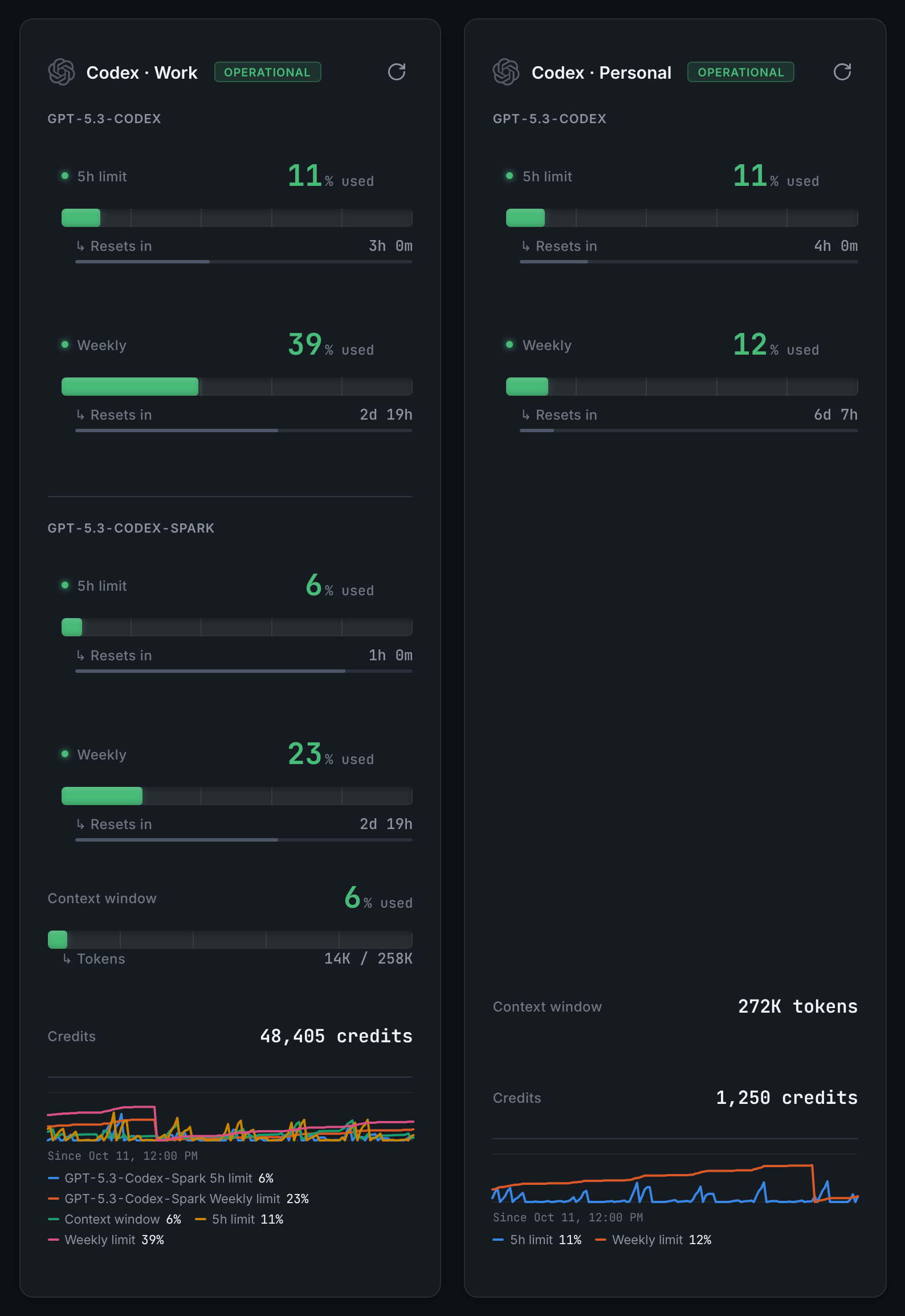
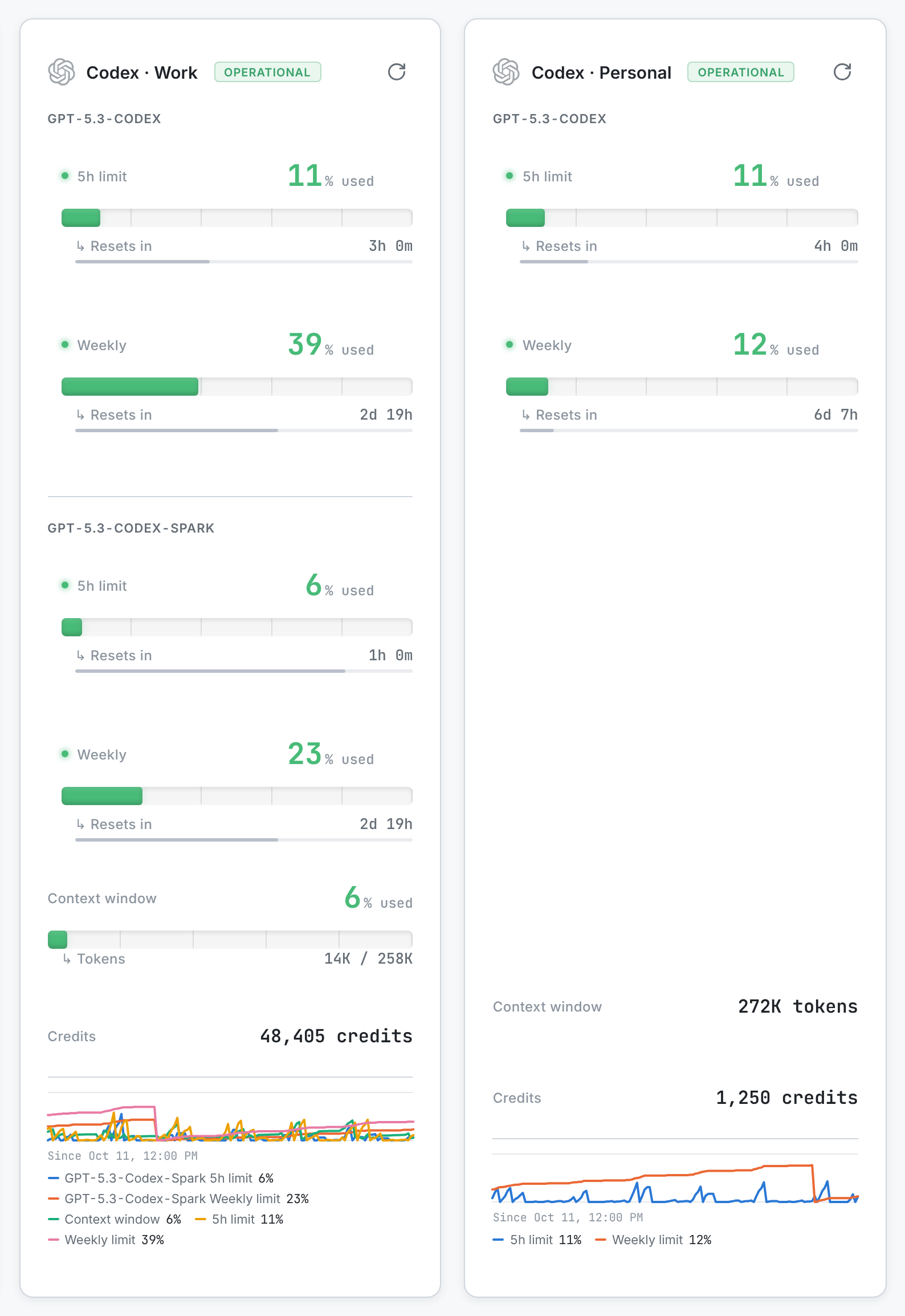
In the sample, work is on pro and personal on plus. Each card shows one account’s limits only; two accounts of the same provider are not combined.
In the API
The id is also the key for the account in the API. Configured account id (the alias for multi-account setups); the key used by /status/:id, /history/:id and /refresh/:id. GET /status/:id returns one account:
curl -s http://127.0.0.1:3456/status/work | jq '{id, provider, plan, windows: [.windows[] | {label, used_percent, resets_at}]}'{
"id": "work",
"provider": "codex",
"plan": "pro",
"windows": [
{
"label": "5h limit",
"used_percent": 11,
"resets_at": "2026-10-17T15:00:00.000Z"
},
{
"label": "Weekly limit",
"used_percent": 39,
"resets_at": "2026-10-20T07:00:00.000Z"
},
{
"label": "GPT-5.3-Codex-Spark 5h limit",
"used_percent": 6,
"resets_at": "2026-10-17T13:00:00.000Z"
},
{
"label": "GPT-5.3-Codex-Spark Weekly limit",
"used_percent": 23,
"resets_at": "2026-10-20T07:00:00.000Z"
}
]
}provider says which CLI it is, so a script can group accounts by provider and still tell them apart by id. To keep both in view all day, show coding agent usage in tmux, Waybar or SwiftBar; the one-account script there takes an id such as work.
History per account
History is recorded per account id, so the work seat and the personal plan each get their own series and their own sparkline, kept for 14 days by default (usage history):
curl -s 'http://127.0.0.1:3456/history/work?view=chart' | jq '{agent, series: [.series[].key]}'History is stored under the id, so keep ids stable once you have picked them. Over a couple of weeks, the two histories show how much of each account’s limits your work and your own projects use, which is useful when you talk to your employer about a seat tier or choose your own plan.
To set up Agent Tank in the first place, start with getting started. The provider pages for Claude Code, OpenAI Codex and Antigravity CLI cover how each CLI is read.
Sources
Every plan name, number and limit behaviour above links to one of these official pages.
- Anthropic Consumer Terms: account sharing: www.anthropic.com/legal/consumer-terms (checked )
- Claude Code on Team seats: claude.com/pricing (checked )
- Claude Team and Enterprise per-seat allowance: code.claude.com/docs/en/costs (checked )
- OpenAI’s description of Codex on ChatGPT Business: learn.chatgpt.com/docs/pricing (checked )
- Anthropic Consumer Terms: activity under your account: www.anthropic.com/legal/consumer-terms (checked )
- Anthropic Consumer Terms: no bypassing systems or protective measures: www.anthropic.com/legal/consumer-terms (checked )
- Anthropic Commercial Terms: not for consumer use: www.anthropic.com/legal/commercial-terms (checked )
- Anthropic Commercial Terms: activity under the customer account: www.anthropic.com/legal/commercial-terms (checked )
- OpenAI Terms of Use: openai.com/policies/terms-of-use (checked )
- Google Antigravity Terms of Service: antigravity.google/terms (checked )
- Google Antigravity Additional Terms: enterprise and Workspace access: antigravity.google/terms (checked )