Workflows
How to avoid running out of limits mid-task
Hitting a usage limit halfway through a refactor is worse than hitting it between tasks: the agent stops with half-finished changes and you have to pick up the thread later. This guide covers habits that make that less likely with Claude Code, Codex and Antigravity, using only what the vendors document and what Agent Tank can show you.
Plans and limits change often. Numbers here were checked on the dates listed under Sources; always confirm on the provider’s own pages.
Why limits run out mid-task
Subscription limits are not a count of prompts. The rate limits correlate with the amount of work done by the agent1, and OpenAI says the same of Codex: Small scripts or routine functions may consume only a fraction of your allowance, while larger projects, long-running tasks, or extended sessions that require the agent to hold more context will use significantly more per message2. A few things make one task far heavier than another:
- Long agentic loops. Every tool call is another request. You receive more prompts when your tasks are straightforward and the agent can complete the work quickly, while more complex tasks consume more quota3.
- Large contexts. Claude Code sends your full conversation with every request, so a one-line question in a session that has been open all day still draws usage for the whole conversation4.
- Parallel sessions and subagents. Every subagent sends its own requests on top of the main conversation’s5, and two sessions on one account draw from the same window.
- Model and effort choice. Model choice, context, reasoning, tool use, retrieval, and caching all affect usage, so prompt length alone isn’t a reliable estimate6. Higher reasoning effort can improve results for complex tasks, but it takes longer and uses more tokens; start with the default effort and increase it when the task needs deeper planning or analysis7.
Codex reports how full its context window is, and Agent Tank keeps it as context_window on the provider object (only while Codex has an active session):
curl -s http://127.0.0.1:3456/status | jq '.providers[] | select(.provider == "codex") | {id, context_window}'Check headroom before starting
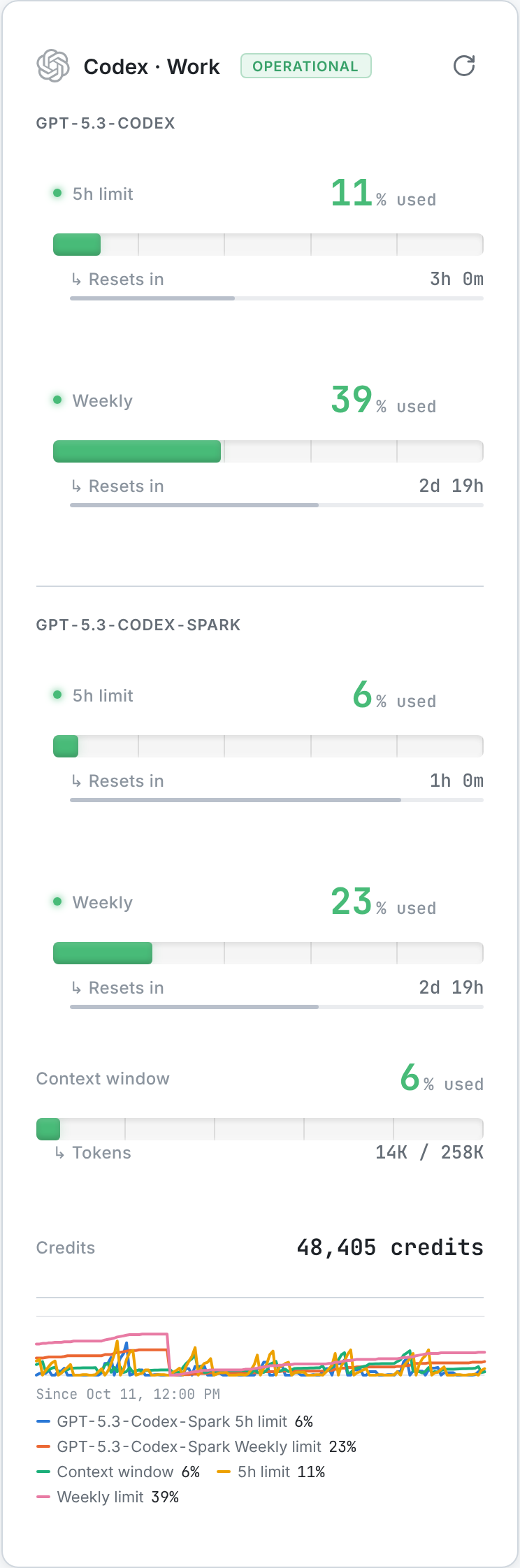
Before a long task, a glance at the dashboard tells you whether the current window has room for it. Each window shows how much is used and when it resets:
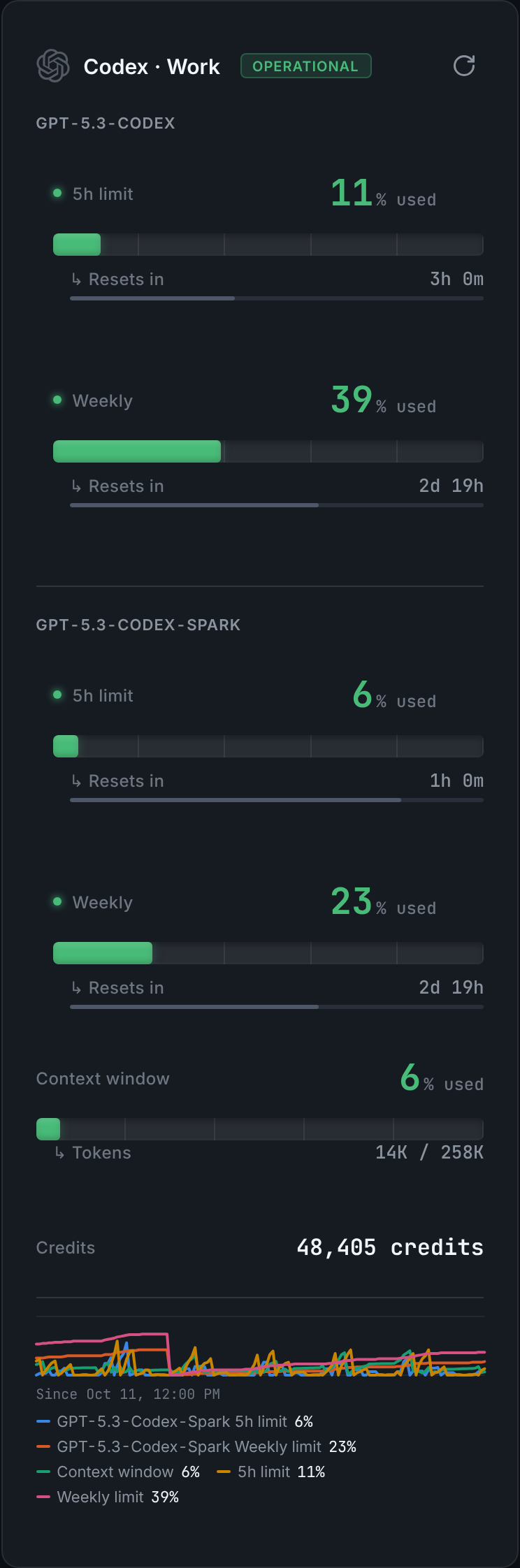
In a script, gate the task on the numbers instead. This line, from the cron and CI example, exits non-zero when any window is above the threshold, so && only starts the next command when there is room:
agent-tank --once --json | jq -e '[.providers[].windows[] | select(.used_percent > 90)] | length == 0'Watch pace, not just percentage
A window that is half used sounds fine, but not if it resets in a week and you used that half in a day. Agent Tank adds a pace object to each window for this:
ratio: Usage rate vs elapsed-time rate (above 1 means usage is out-pacing the window).burning_fast: Whether usage is on track to exhaust the window early.
A simple example: if you have used half of a weekly window after a quarter of the week, you are using it twice as fast as the clock, so the ratio is 2 and you will run out around mid-week. Used a quarter after half the week, the ratio is 0.5 and you have room to spare. Here is the sample window with the highest ratio in Agent Tank’s synthetic data:
{
  "id": "personal",
  "type": "weekly",
  "label": "Weekly limit",
  "model": null,
  "used_percent": 12,
  "remaining_percent": 88,
  "resets_at": "2026-10-23T19:00:00.000Z",
  "resets_in_seconds": 543600,
  "pace": {
    "ratio": 1.19,
    "burning_fast": false
  }
}Only a small share of that window is used, but the ratio is above 1, so usage is ahead of the clock. burning_fast is still false, meaning it is not yet on track to run out early: a good moment to plan the rest of the week rather than to stop.
OpenAI gives similar advice for Codex: Check the dashboard every week or two to understand your pace and remaining capacity; if usage is higher than expected, consider whether a smaller model or tighter task scope would still produce a useful result8. Pace and burn rate works through the ratio step by step with sample data.
Know when windows reset
Every window has a resets_at time (ISO 8601) and a resets_in_seconds countdown. If a big task will not fit in what is left, it is often better to finish smaller work now and start the big one just after a reset. List every reset, soonest first:
curl -s http://127.0.0.1:3456/status | jq -r '[.providers[] | .id as $id | .windows[] | select(.resets_at) | {id: $id, label, resets_at}] | sort_by(.resets_at)[] | "\(.resets_at) \(.id) · \(.label)"'Short and weekly windows need different planning. A full session or five-hour window comes back within hours. A full weekly window can leave you waiting days, so watch it across the week. The weekly limit resets at a fixed time each week that is assigned to your account, regardless of when you start using Claude9. For Codex, Check your usage dashboard for current limits and reset times10. How usage windows work explains each provider’s windows in detail.
Keep context lean
Each agent documents its own commands for this:
- Claude Code. Use /clear to start fresh when switching to unrelated work; stale context wastes tokens on every subsequent message11. /compact reads the conversation it summarizes, so compacting a large context is itself a large request; when you want a fresh start instead of continuity, /clear costs nothing12. Vague requests like “improve this codebase” trigger broad scanning, while specific requests let Claude work efficiently with minimal file reads13. Sonnet handles most coding tasks well and costs less than Opus; reserve Opus for complex architectural decisions or multi-step reasoning14. On a Pro, Max, Team or Enterprise plan, /usage shows what counts against your plan limits, with recommendations15.
- Codex. /compact summarizes the visible chat to free tokens; use it after long runs so Codex retains key points without blowing the context window16. /new starts a new chat inside the same CLI session, resetting the chat context17. /status displays session configuration and token usage, including remaining context capacity18.
- Antigravity. /clear (alias /new) clears the terminal and resets active conversation contexts19. /context opens the context usage visualization panel20.
On Codex, the context_window from the first section shows the same number in Agent Tank, so you can see when a session is getting heavy without switching to it.
Spread work across agents and accounts
If you use more than one agent, you can move to another provider when one is near its limit. Claude vs Codex vs Antigravity compares how their limits are built.
If you legitimately have more than one account with a provider, such as a work and a personal plan, Agent Tank can watch both. Repeat --agent once per account:
agent-tank --agent codex:work=/srv/accounts/codex-work --agent codex:personal=/srv/accounts/codex-personalUse each account only as its terms allow. Never share an account or use extra accounts to get around a limit. Anthropic’s terms say: You may not share your Account login information, Anthropic API key, or Account credentials with anyone else or make your Account available to anyone else21. Google’s Antigravity terms say: You must not abuse, harm, interfere with, or disrupt the Service22. For Codex, read OpenAI’s Terms of Use23.
Get alerted
Checking by hand works until you forget. Put usage where you already look:
- A status bar. The tmux and Waybar examples show the highest usage next to the clock; show coding agent usage in tmux, Waybar or SwiftBar walks through all three setups.
- A threshold script. The Node.js example exits with code 1 when any weekly window is above a threshold, so a shell
&&chain or a scheduled job can act on it:
// Exit 1 when any weekly window is above the threshold (default 80%).
// Usage: node check-weekly.mjs [threshold]   (Node.js 18+)
const url = process.env.TANK_URL ?? 'http://127.0.0.1:3456';
const threshold = Number(process.argv[2] ?? 80);

const res = await fetch(`${url}/status`, { signal: AbortSignal.timeout(5000) });
if (!res.ok) throw new Error(`GET /status returned ${res.status}`);
const { providers } = await res.json();

const over = providers.flatMap((p) => p.windows
  .filter((w) => w.type === 'weekly' && w.used_percent > threshold)
  .map((w) => `${p.id} · ${w.label}: ${w.used_percent}%`));

if (over.length > 0) {
  console.error(`Weekly usage above ${threshold}%:\n${over.join('\n')}`);
  process.exit(1);
}
console.log(`All weekly windows at or below ${threshold}%.`);Over time, the usage history sparklines show your patterns, such as which days fill the weekly window. That tells you when to plan heavy work, and whether a bigger plan would help (see Claude plans compared).
What to do when you hit a limit
These are the options each vendor documents. Waiting for the reset always works.
Claude Code
- The limit message (“You’ve hit your session limit” or “You’ve hit your weekly limit”) shows when the window resets; these windows are shared across all models, so switching models with /model does not restore access24.
- After a model-specific message such as “You’ve hit your Opus limit”, switching to a model outside that family with /model keeps you working25.
- Enable usage credits, upgrade (Pro to Max 5x, Max 5x to Max 20x), buy API credits through a Claude Console account, or wait until your usage limits reset26. On Claude Code v2.1.234 or later you can wait and continue the interrupted task automatically after the reset27.
What happens when you hit the Claude weekly limit goes through each of these for a full week.
Codex
- If you reach your usage limits during an active turn, the agent can continue working on that turn28.
- ChatGPT Plus and Pro users who reach their usage limit can purchase additional credits to continue working29. Business, Edu, and Enterprise plans with flexible pricing can purchase additional workspace credits to continue working30.
- All users may also run extra local chats using an API key, with usage charged at standard API rates31.
Codex credits vs plan limits explains when credits come into play.
Antigravity
- Once a model’s baseline quota is exhausted, the AI Credit Overages setting decides: Never (wait until the baseline quota refreshes) or Always (use purchased AI credits, consumed at standard Gemini Enterprise consumption pricing)32.
- The CLI’s useG1Credits setting (off by default, not available for business accounts) uses your AI credits for model requests after your plan’s quota runs out33.
- There is currently no support for bring-your-own-key (BYOK) or bring-your-own-endpoint for additional rate limits34.
See the Claude Code, OpenAI Codex and Antigravity CLI pages for how Agent Tank tracks each one, or get started to install it.
Sources
Every plan name, number and limit behaviour above links to one of these official pages.
- Antigravity limits depend on agent work, not request counts: antigravity.google/docs/plans (checked )
- What makes Codex usage grow: learn.chatgpt.com/docs/pricing (checked )
- Antigravity: complex tasks consume more quota: antigravity.google/docs/plans (checked )
- Why Claude Code usage climbs in a long session: code.claude.com/docs/en/costs (checked )
- Claude Code subagents add their own usage: code.claude.com/docs/en/costs (checked )
- Factors that affect Codex usage: learn.chatgpt.com/docs/pricing (checked )
- Codex reasoning effort and token use: learn.chatgpt.com/docs/models (checked )
- OpenAI’s advice on Codex usage pace: learn.chatgpt.com/docs/pricing (checked )
- Claude weekly limit reset time: support.claude.com/en/articles/11049741-what-is-the-max-plan (checked )
- Where Codex shows reset times: learn.chatgpt.com/docs/pricing (checked )
- Claude Code: clear between tasks: code.claude.com/docs/en/costs (checked )
- Claude Code: /compact vs /clear: code.claude.com/docs/en/costs (checked )
- Claude Code: write specific prompts: code.claude.com/docs/en/costs (checked )
- Claude Code: choose the model for the task: code.claude.com/docs/en/costs (checked )
- Claude Code /usage plan usage breakdown: code.claude.com/docs/en/costs (checked )
- Codex CLI /compact: learn.chatgpt.com/docs/cli/slash-commands (checked )
- Codex CLI /new: learn.chatgpt.com/docs/cli/slash-commands (checked )
- Codex CLI /status: learn.chatgpt.com/docs/cli/slash-commands (checked )
- Antigravity CLI /clear: antigravity.google/docs/cli/reference (checked )
- Antigravity CLI /context: antigravity.google/docs/cli/reference (checked )
- Anthropic Consumer Terms: account sharing: www.anthropic.com/legal/consumer-terms (checked )
- Google Antigravity Terms of Service: antigravity.google/terms (checked )
- OpenAI Terms of Use: openai.com/policies/terms-of-use (checked )
- Claude Code session and weekly limit messages: code.claude.com/docs/en/costs (checked )
- Claude Code model-specific limit messages: code.claude.com/docs/en/costs (checked )
- Claude options when you reach a limit: support.claude.com/en/articles/11145838-use-claude-code-with-your-pro-or-max-plan (checked )
- Claude Code continue-after-reset option: code.claude.com/docs/en/costs (checked )
- Codex behaviour when a limit is hit mid-turn: learn.chatgpt.com/docs/pricing (checked )
- Codex credits after a limit (Plus and Pro): learn.chatgpt.com/docs/pricing (checked )
- Codex workspace credits after a limit: learn.chatgpt.com/docs/pricing (checked )
- Codex API key fallback after a limit: learn.chatgpt.com/docs/pricing (checked )
- Antigravity behaviour when baseline quota is exhausted: antigravity.google/docs/plans (checked )
- Antigravity CLI useG1Credits setting: antigravity.google/docs/cli/reference (checked )
- Antigravity: no BYOK for extra rate limits: antigravity.google/docs/plans (checked )